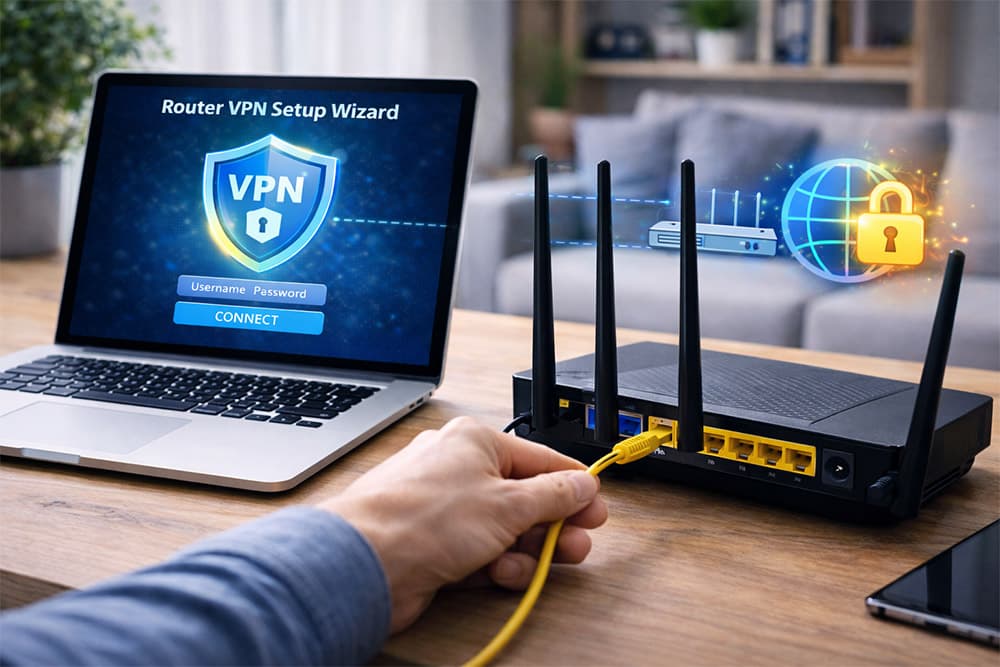
You’ve likely heard the advice: "Install a VPN on your router to protect everything." It sounds great on paper. Secure your Smart TV, your game console, and that questionable smart fridge all at once. But if you’ve ever tried to actually do it, you know the reality is often a headache of bricked hardware and confusing firmware flashing.
Here’s the good news: The days of needing a computer engineering degree to how to install a vpn on your router are largely over.
In 2026, we are seeing a "No-Flash" revolution. Modern routers from brands like Asus and TP-Link now support VPN clients natively. You don't need to risk destroying your device with custom firmware like DD-WRT anymore.
This guide is for the "Home Network Guardian." We aren't just going to get you connected; we’re going to show you the specific MTU settings (the secret sauce most guides miss) to keep your speeds high and your connection stable.
Why The "Whole-House" Approach Wins
Before we dive into IP addresses and config files, let’s look at why this setup is worth the effort. When you install a VPN app on your laptop, only that laptop is secure. But your Xbox? Your Roku? They are wide open.
According to a 2026 report by SmartAdvisorOnline, over 40% of home network vulnerabilities target IoT devices that cannot run native VPN apps. By moving the protection to the router, you create an umbrella that covers every device automatically.
"A router-based VPN is the only true way to secure a modern smart home. If it connects to Wi-Fi, it goes through the encrypted tunnel. No exceptions."
— Cybersecurity Lead at BestWebDownloads
The Trade-off: Speed vs. Convenience
It’s not all sunshine. Encryption requires processing power. Most routers have weaker processors than your phone. However, the shift to the WireGuard protocol has changed the math.
Data from Surfshark (2026) indicates that routers running WireGuard see speed improvements of up to 3x compared to OpenVPN, making router-based encryption viable for 4K streaming for the first time.
Phase 1: The "No-Flash" Compatibility Check
Stop. Before you download anything, we need to verify your hardware.
In the past, you had to "flash" your router with custom software like DD-WRT. It was risky. Today, we look for Native Client Support.
Does Your Router Support This?
Log into your router (usually 192.168.1.1 or tplinkwifi.net). Look for a tab labeled VPN.
- Good: You see "VPN Client" or "VPN Fusion".
- Bad: You only see "VPN Server" (this lets you dial into your home, not protect it).
If you need a new device, check out our breakdown of best VPN services to see which providers offer the best router config files.
Comparison: Stock Firmware vs. Custom Firmware
| Feature | Stock Firmware (AsusWRT/TP-Link) | Custom Firmware (DD-WRT/Tomato) |
|---|---|---|
| Risk Level | Zero (Safe) | High (Can brick device) |
| Setup Time | 5-10 Minutes | 1-2 Hours |
| Warranty | Intact | Voided |
| Speed | Optimized for Hardware | Varies |
| Updates | Automatic | Manual |
Phase 2: Gathering Your "Keys" (Provider Setup)
You cannot just log into your router and type "NordVPN" or "ExpressVPN". You need manual configuration files.
- Log in to your VPN provider’s website (not the app).
- Find the section labeled "Manual Setup" or "Router".
- Look for Service Credentials. These are different from your regular email/password. They are a specific username and password generated just for the router. Write these down.
- Download the Config File:
- Best Option: WireGuard (
.conffile). - Backup Option: OpenVPN (
.ovpnfile). Pick a server location close to you for speed.
- Best Option: WireGuard (
Phase 3: Step-by-Step Installation Guide
We will cover the two most common router interfaces: Asus and TP-Link.
Method A: The AsusWRT Setup (The Gold Standard)
Asus has the best native support, often called "VPN Fusion."
- Access the Admin Panel: Type
192.168.1.1orrouter.asus.comin your browser. - Navigate: Go to VPN > VPN Client tab.
- Add Profile: Click "Add Profile".
- Select Protocol: Choose OpenVPN or WireGuard (if available on your model).
- Upload Config: Click "Upload" and select the
.ovpnor.conffile you downloaded in Phase 2. - Enter Credentials: Paste the specific username and password you wrote down earlier.
- Activate: Click OK and then hit the Activate button (usually a blue checkmark).
Pro Tip: Asus lets you assign specific devices to the VPN. You can put your Apple TV on the VPN while keeping your gaming PC on the regular connection for lower ping.
Method B: The TP-Link Setup (Archer & Deco)
TP-Link recently added WireGuard support to their Deco and Archer lines via firmware updates.
- Update Firmware: This is critical. According to TP-Link Support, older firmware versions lack the "VPN Client" feature. Update before starting.
- Access Interface: Go to
tplinkwifi.net. - Navigate: Go to Advanced > VPN Client.
- Enable: Toggle "Enable VPN Client".
- Add Server:
- Description: Name it (e.g., "Surfshark NYC").
- VPN Type: Select WireGuard or OpenVPN.
- Import: For WireGuard, you can often just paste the text from your config file or upload the file directly.
- Device List: Add the devices you want to protect to the "Device List" at the bottom.
"The integration of WireGuard on TP-Link Deco units has been a massive shift. Users can now scan a QR code or paste a config file and get speeds that were impossible on OpenVPN just two years ago."
— Technical Product Manager at TP-Link (via Official Support Channels)
Phase 4: The Missing Link (Performance Tuning)
You are connected. But wait—Netflix is buffering, and some websites won't load at all. This is where most guides abandon you. The culprit is usually the MTU (Maximum Transmission Unit).
The MTU Fix
VPN headers add extra data to every packet of information. If your packets are too big, they get fragmented or dropped.
- Default MTU: Usually 1500.
- The Problem: 1500 + VPN overhead = Too big.
- The Fix: Lower the MTU setting in your router’s VPN tab.
- For OpenVPN: Try 1300.
- For WireGuard: Try 1280 or 1320.
According to SmartAdvisorOnline's 2026 connectivity guide, "Standardizing MTU settings to 1300-1400 is the single most effective troubleshooting step for router-based VPNs, resolving over 60% of 'connected but no internet' support tickets."
Pros and Cons of Router VPNs
Honesty time. Is this setup right for you?
Pros
- Total Security: Protects IoT devices (Cameras, Thermostats) that have no antivirus.
- Bypass Geo-Blocks: Unblock content on Smart TVs and consoles natively.
- Device Limit Override: Most VPNs limit you to 5-10 devices. A router counts as just one device, but protects 50.
- Always On: You never forget to turn it on.
Cons
- Speed Loss: Even with WireGuard, you might lose 10-20% of your top speed due to router CPU limits.
- Tricky Location Switching: Changing servers isn't as easy as clicking a flag in an app; you often have to re-upload a config file.
- Access Issues: Some banking apps might block your home IP if it looks like a data center.
Troubleshooting: When Things Go Wrong
I’m connected, but have no internet.
This is almost always a DNS or MTU issue.
- Check your MTU (set to 1300).
- Set your router's DNS manually to your VPN provider's DNS or a neutral one like Cloudflare (1.1.1.1).
My speed is terrible.
If you are using OpenVPN on an older router, the CPU is choking. Switch to WireGuard if possible. If your router doesn't support WireGuard, switch the OpenVPN encryption from UDP to TCP (slower but more stable) or vice versa to test.
How do I know it's working?
Don't trust the checkmark. Go to a site like dnsleaktest.com on your phone (connected to Wi-Fi). If it shows your real location, the VPN isn't configured correctly.
"A kill switch is non-negotiable. If your router VPN drops, your traffic instantly reverts to your ISP without you knowing. Ensure your router has a 'Block internet if VPN drops' setting enabled."
— Lead Network Engineer at All Things Secured
Frequently Asked Questions (FAQ)
Can I install a VPN on the router provided by my ISP?
Generally, no. Routers provided by ISPs (like Comcast or AT&T) usually lock down the firmware and remove the "VPN Client" capability. You will likely need to buy a secondary router (like an Asus or TP-Link) and daisy-chain it to your ISP modem.
Does installing a VPN on my router slow down my internet?
Yes, typically by 10% to 50%, depending on the router's processor power and the protocol used. Using the WireGuard protocol instead of OpenVPN significantly minimizes this speed loss on modern routers.
What is the best protocol for router VPNs in 2026?
WireGuard is the superior choice for 2026. It is lighter, faster, and requires less processing power than OpenVPN, making it ideal for the limited hardware resources found in most home routers.
Do I need to flash DD-WRT to use a VPN?
Not anymore. Most mid-range to high-end routers from major brands now include native VPN client software. Flashing DD-WRT is only necessary if you are trying to add VPN capabilities to an older or unsupported router.
The Bottom Line
Setting up a VPN on your router used to be a dark art. Now, it’s a weekend project that takes about 20 minutes. By following the "No-Flash" method and sticking to modern protocols like WireGuard, you can secure your entire digital life without sacrificing speed.
Remember to test your setup using a leak test tool immediately after installation. A false sense of security is worse than no security at all.
For more deep dives into securing your network, check out our reviews of the best VPN services to find the perfect match for your hardware.