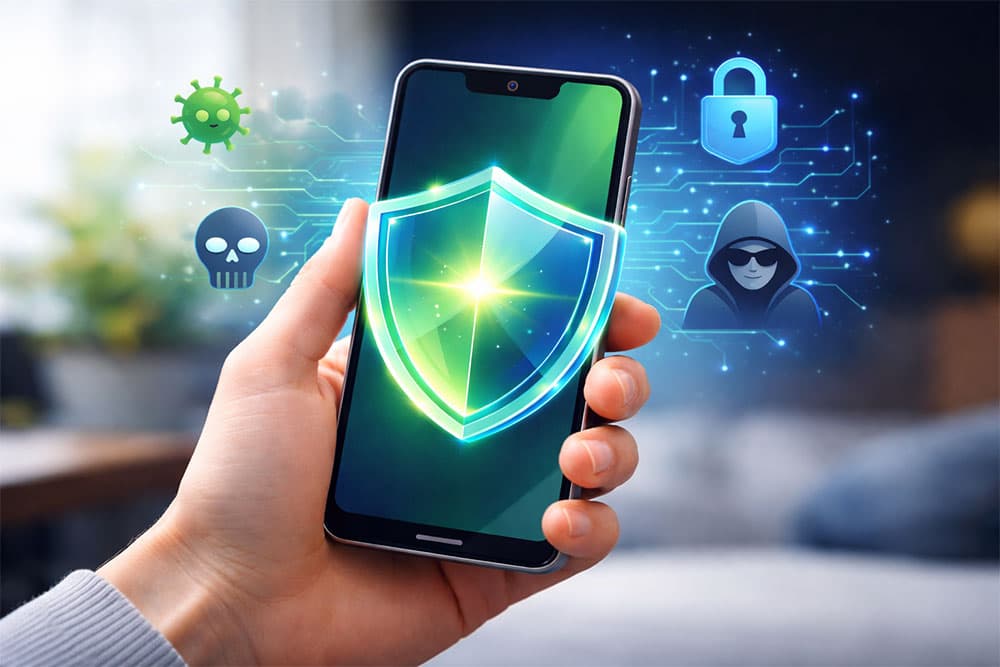
Here’s the scary truth about your phone: You don't have to click a suspicious link to get hacked anymore.
For years, the standard advice was simple. "Don't download shady apps." "Don't click on weird SMS links." If you followed those rules, you were generally safe.
But in 2026? That advice is dead.
We are now living in the era of the "0-click exploit" and the "snatch-and-run" theft. Hackers can compromise your device through an audio file you never even played. Thieves can snatch your unlocked phone and drain your bank account before you can even find a borrow a friend's device to call for help.
I've seen this firsthand. Friends who consider themselves "tech-savvy" have lost access to their Google accounts not because they had a weak password, but because they didn't understand how modern Android vulnerabilities actually work.
This isn't just another list of generic tips. This is the Passive Defense Protocol. We’re going to set up your Android device to defend itself when you aren't looking, when you're asleep, or when it's physically stolen from your hands.
Whether you’re rocking the latest Samsung Galaxy or holding onto a budget device that hasn't seen an update in months, this guide is your survival manual.
The "Invisible" Threat: Blocking 0-Click Exploits
Let's start with the most terrifying development in mobile security: the 0-click exploit.
Traditionally, a hack required user interaction. You had to make a mistake. You had to tap "Yes" or "Install." But recent research has shifted the battlefield.
According to the Google Project Zero Team (2025), "One effect of this change is increased 0-click attack surface... Audio decoders are now in the 0-click attack surface of most Android phones."
What Does This Mean?
Your messaging app (like Google Messages or WhatsApp) tries to be helpful. When someone sends you a voice note or a video, the app automatically processes that file in the background so it’s ready to play the moment you open the chat.
Hackers found a way to hide malicious code inside that audio data. Your phone's audio decoder reads the file to prepare it, executes the code, and boom—your device is compromised. You didn't even open the message.
How to Stop It (The Passive Defense Fix)
You need to disable the automatic processing of media files. It adds one second of loading time to your messages but closes a massive security door.
For Google Messages:
- Open Messages.
- Tap your profile icon in the top right.
- Go to Messages settings > Automatic previews.
- Toggle OFF "Show all previews."
For WhatsApp/Telegram:
- Go to Settings > Data and Storage.
- Find Media Auto-Download.
- Set "When using mobile data," "When connected on Wi-Fi," and "When roaming" all to No Media.
This forces your phone to wait for your permission before processing potentially dangerous code.
Physical Security 2.0: Theft Detection & Remote Lock
I used to worry about malware. Now? I worry about someone grabbing my phone while it's unlocked and running off with my digital life.
If a thief snatches your phone while you're using it (unlocked), they have access to your email, your password resets, and likely your banking apps.
Google has finally addressed this with features that rolled out heavily in Brazil first and are now global standards: Theft Detection Lock and Remote Lock.
How Theft Detection Works
This feature uses the gyroscope and accelerometer sensors in your phone, combined with AI, to detect the specific motion associated with a "snatch-and-run." If the phone detects a sudden jerk followed by rapid acceleration (like someone grabbing it and jumping on a bike), it instantly locks the screen.
Setting Up Your Anti-Theft Shield
Don't assume this is on. Check it now.
- Open Settings.
- Tap Google > All Services.
- Scroll down to Personal Safety or Theft Protection.
- Toggle Theft Detection Lock to ON.
The "Remote Lock" Fail-Safe
What if the thief gets away?
In the past, you had to log into "Find My Device" to lock your phone. That required remembering your Google password—which you probably couldn't do because you were panicking.
Remote Lock lets you lock your screen using just your phone number and a quick security challenge from any device.
- Pro Tip: This feature saves vital minutes. If your phone is stolen, grab a stranger's phone, go to
android.com/lock, enter your number, and boom—your device is a brick.
The Update Gap: Surviving on a Budget Phone
Here is the dirty secret of the Android ecosystem: Fragmentation.
Unlike Apple, where updates hit everyone simultaneously, Android updates depend on your manufacturer. If you have a Pixel, you're safe. If you have a two-year-old budget phone? You might be months behind.
A statistic from OreateAI (2024) highlights a structural difference: vulnerability patching on Android is often delayed by carrier testing and manufacturer rollout schedules, leaving millions exposed to known threats.
How to Check Your "Security Patch Level"
It's not enough to just check for "System Updates." You need to look at the Security Patch Level.
- Go to Settings > About Phone.
- Tap Android Version.
- Look at Android Security Update.
- The Rule: If the date is more than 3 months old, your device is vulnerable to known exploits.
What If You Can't Update?
If your manufacturer has stopped sending updates (a common issue with budget phones), you are in the "Update Gap." You can't patch the OS, so you must harden the apps.
- Switch Browsers: Stop using the default browser. Install a privacy-focused browser that updates independently of the OS (like Firefox or Brave).
- Google Play Protect: Ensure this is scanning daily. It’s your last line of defense against malware that slips through unpatched OS holes.
- According to the latest Android security patches bulletin, keeping Google Play services updated can mitigate some system-level vulnerabilities even if the OS isn't patched.
"Exploitation for many issues on Android is made more difficult by enhancements in newer versions of the Android platform. We encourage all users to update to the latest version of Android where possible."
— Google Security Team, Android Security Platform
App Hygiene: Mastering the Privacy Dashboard
Apps are greedy. They want your location, your contacts, and your microphone, even when they don't need them.
In 2026, we don't just "guess" which apps are spying on us. We use the Privacy Dashboard.
The 24-Hour Timeline
The Privacy Dashboard gives you a 24-hour timeline of exactly which apps accessed your camera, microphone, or location.
Check this weekly:
- Go to Settings > Privacy.
- Tap Privacy Dashboard.
- Look for anomalies. Why did your flashlight app access your location at 3 AM? Why did that calculator app use the microphone?
The "Remove Permissions" Cleanse
If you see suspicious activity, revoke the permission immediately.
- Location: Switch apps from "Allow all the time" to "Allow only while using the app." Better yet, use "Ask every time" for sensitive apps.
- Microphone/Camera: Be ruthless here. Does a wallpaper app need your camera? No. Deny it.
This aligns with OWASP 2024 standards, which emphasize "Least Privilege"—no app should have more access than it absolutely needs to function.
Account Lockdown: Beyond Passwords
If your password is "Password123" or your dog's name, you're already in trouble. But even a strong password isn't enough anymore. Phishing sites can trick you into typing it in, and keyloggers can record it.
You need Passkeys.
Why Passkeys Beat Passwords
Passkeys replace typed passwords with cryptographic keys stored on your device. You log in using your fingerprint or face unlock. There is nothing for a hacker to steal because the private key never leaves your phone.
To set this up, you'll need to follow the passkeys and hardware-backed 2FA protocols:
- Go to your Google Account settings.
- Tap Security.
- Scroll to How you sign in to Google.
- Tap Passkeys and follow the prompts to create one for your current device.
Hardware-Backed 2FA
If you must use a password, ensure your Two-Factor Authentication (2FA) isn't just SMS. SMS can be intercepted (SIM swapping is rampant).
Use an authenticator app (like Google Authenticator or Aegis) or a physical security key (like a YubiKey). This aligns with NIST authentication guidelines which recommend moving away from SMS-based verification.
Step-by-Step Guide: The 10-Minute Security Makeover
Feeling overwhelmed? Don't be. Grab your phone. We are going to lock it down in exactly 10 minutes.
Step 1: Set a Strong Screen Lock (2 Minutes)
- Go to Settings > Security & Privacy > Device Unlock.
- Ditch the "Pattern" unlock (grease smudges reveal your pattern).
- Use a PIN (6 digits minimum) or a complex Alphanumeric password.
- Enable Biometrics (Fingerprint is generally more secure than Face Unlock on budget phones).
Step 2: Enable "Find My Device" (1 Minute)
- Go to Settings > Google > Find My Device.
- Toggle it ON.
- Select "Store recent location" so you can find it even if the battery dies.
Step 3: Run a Google Play Protect Scan (1 Minute)
- Open the Play Store app.
- Tap your profile icon > Play Protect.
- Tap Scan.
- Ensure "Scan apps with Play Protect" is toggled ON.
Step 4: Audit "Admin Apps" (2 Minutes)
- Go to Settings > Apps > Special app access.
- Tap Device admin apps.
- If you see anything here you don't recognize, deactivate it immediately. This is where nasty malware hides to prevent you from uninstalling it.
Step 5: Turn on Safe Browsing (2 Minutes)
- Open Chrome.
- Tap the three dots > Settings > Privacy and security.
- Tap Safe Browsing.
- Select Enhanced protection. This sends real-time data to Google to check for dangerous sites before you load them.
Step 6: Check for Unknown Tracker Alerts (2 Minutes)
- Go to Settings > Safety & Emergency (or Google settings).
- Tap Unknown tracker alerts.
- Ensure "Allow alerts" is ON. This warns you if someone slips an AirTag or tracker into your bag.
Comparison: Native Security vs. Third-Party Antivirus
Do you really need to install an antivirus app in 2026? Or is the built-in stuff enough?
If you want a deeper dive into third-party options, check out our guide on the best free antivirus for Android. But for now, here is how they stack up.
| Feature | Native Android Security (Built-in) | Third-Party Antivirus (e.g., Bitdefender, Avast) |
|---|---|---|
| Cost | Free | Free (limited) / Paid Subscription |
| Malware Scanning | Google Play Protect: Scans billions of apps daily. Good for known threats. | Deep Scanning: Often catches newer, obscure malware faster than Google. |
| Theft Protection | Theft Detection Lock: Excellent AI motion sensing. | Anti-Theft: Often includes "take a photo of the thief" features. |
| Web Protection | Chrome Safe Browsing: Blocks phishing sites. | VPN & Web Shield: Often includes a VPN for public Wi-Fi safety. |
| System Impact | Zero: It's part of the OS. | Moderate/High: Can drain battery and slow down older phones. |
| Privacy | Data stays within Google ecosystem. | You are sharing data with another company. |
The Verdict? For 95% of users, Native Security is enough—IF you enable all the features. Third-party apps are good if you frequently download APKs from outside the Play Store or browse high-risk websites.
Pros and Cons of Android Security
Honestly, Android gives you more freedom than iOS, but that freedom comes with responsibility.
Pros
- Customizable Control: You can dive deep into permission managers and configure granular access.
- Theft Innovation: Features like the AI-powered Theft Detection Lock are cutting-edge.
- Open Ecosystem: You aren't locked into one app store (though this is a double-edged sword).
- Hardware Choice: You can choose devices with hardware kill switches for cameras/mics (like some niche privacy phones).
Cons
- Update Fragmentation: The biggest weakness. Budget phones are often left vulnerable while Pixel/Samsung flagships get patched.
- User Responsibility: It requires more manual setup (like the steps in this guide) compared to iPhone's "walled garden" approach.
- Sideloading Risks: It's easier to accidentally install malware if you don't know what you're doing.
Key Statistics and Data
You can't argue with the numbers. Here is why you need to take this seriously.
- 99% of Malware: According to the Android Security Bulletin (2026), Google Play Protect now scans over 100 billion apps every day, blocking the vast majority of malware before it's even installed.
- Brazil Pilot Success: The Google Security Blog (2026) reports that Theft Detection Lock was enabled by default for new devices in Brazil, directly addressing the region's high rate of phone snatching.
- 0-Click Danger: Google Project Zero (2025) identified that audio decoders are a primary vector for 0-click attacks, meaning user interaction is no longer required for compromise.
- Patch Delays: Research from OreateAI (2024) shows that while Pixels get updates instantly, some budget Android models wait an average of 3-6 months for critical security patches.
- Phishing Vulnerability: The same OreateAI report indicates that unpatched Android devices are significantly more susceptible to SMS phishing campaigns than fully updated units.
Expert Quotes
Don't just take my word for it. Here is what the industry leaders are saying about the current threat landscape.
"One effect of this change is increased 0-click attack surface, as efficient analysis often requires message media to be decoded before the message is opened by the user. Audio decoders are now in the 0-click attack surface of most Android phones."
— Google Project Zero Team, Security Researchers
"Exploitation for many issues on Android is made more difficult by enhancements in newer versions of the Android platform. We encourage all users to update to the latest version of Android where possible."
— Google Security Team, Android Security Platform
"Agencies should use the Mobile App Security Verification Standard (MASVS) to ensure mobile apps are secure... and vet third-party mobile apps for security and privacy risks."
— CISA (Cybersecurity and Infrastructure Security Agency), on following government mobile security guidelines.
Frequently Asked Questions (FAQ)
How do I check if my Android phone has a virus?
Look for sudden battery drain, random pop-up ads, or apps you didn't install. To be sure, go to Play Store > Profile > Play Protect and run a manual scan. If that comes up clean but you're still suspicious, boot into Safe Mode (hold power off, then long-press "Power Off" on screen) to see if the issues stop.
Is Android security better than iPhone?
It's different. iPhones are more secure "out of the box" because Apple controls everything. Androids can be just as secure (or more so) if you configure them correctly, but they require more user effort. However, budget Androids that don't get updates are definitely less secure than supported iPhones.
What is the "Theft Detection Lock"?
It's a new AI feature that uses your phone's sensors to feel if someone snatches your phone from your hand and runs away (or rides off on a bike). If it detects this specific motion, it instantly locks the screen so the thief can't access your data.
Should I use a third-party antivirus on Android?
For most users, no. Google Play Protect is sufficient. However, if you frequently download apps from websites (APKs) instead of the Play Store, or if you visit high-risk sites, a reputable antivirus like Bitdefender or Malwarebytes adds a necessary layer of protection.
How often should I restart my phone for security?
At least once a week. Restarting your phone clears the RAM and can disrupt certain types of non-persistent malware. It also forces pending security updates to install.
Final Thoughts
Securing your Android phone in 2026 isn't about being paranoid. It's about being pragmatic.
The threats have changed. The "Passive Defense" approach—disabling auto-downloads, enabling theft detection, and using passkeys—sets you up to win before the attack even happens. You don't need to be a tech genius; you just need to be prepared.
Take ten minutes today to run through the steps above. Your future self (and your bank account) will thank you.